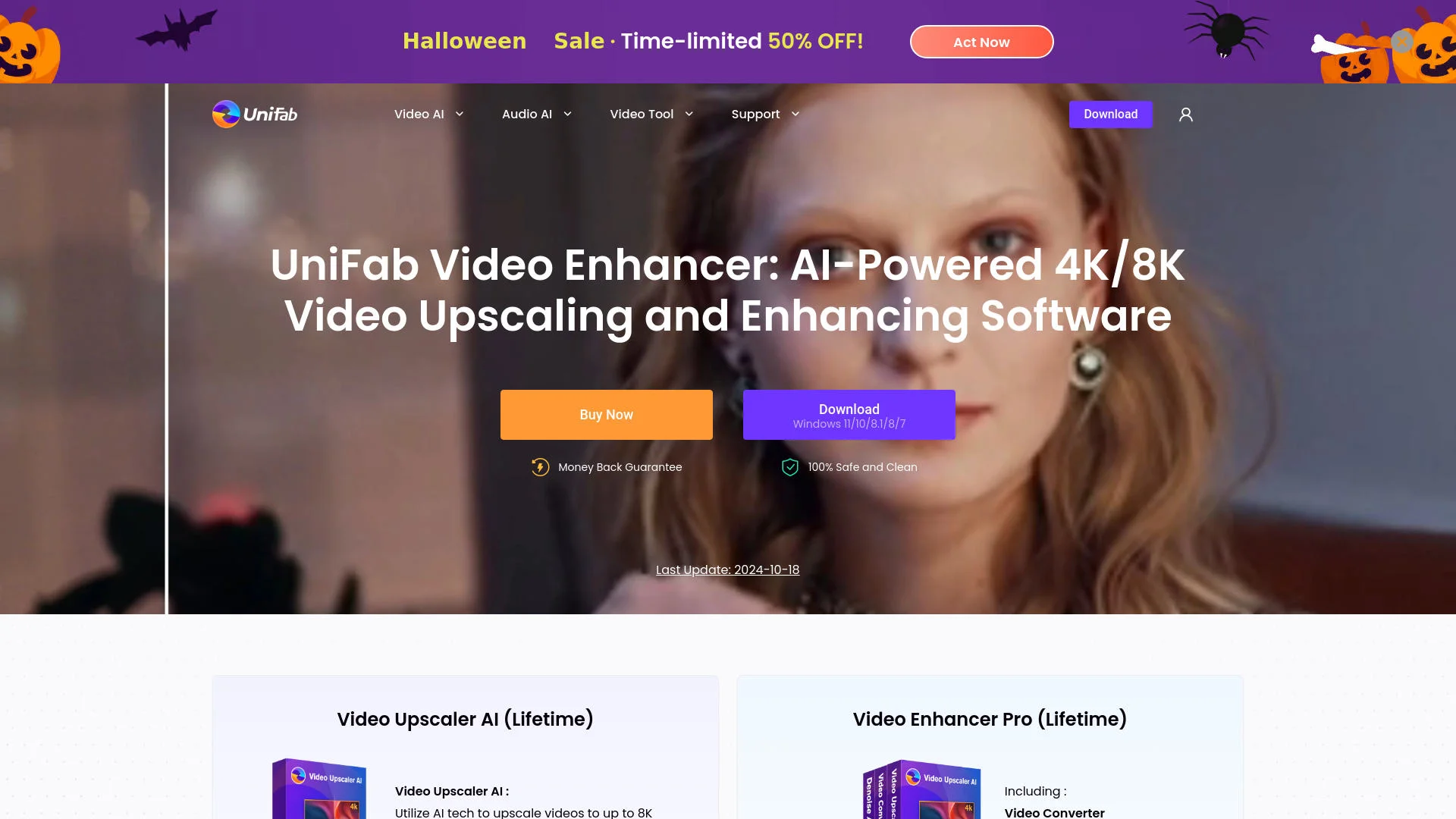
UniFab Video Enhancer
AI-powered tool upscales videos to stunning 8K quality.
Key Takeaways
- What it is
- AI-powered tool upscales videos to stunning 8K quality.
- Best for
- Advanced 8K Video Upscaler
- Universal and Animation Models
- AI Denoise
- Rating
- 4.6/5
What is UniFab Video Enhancer?
UniFab Video Enhancer is an AI-powered video enhancement tool designed to upscale and refine video content to next-level quality. This tool is engineered to transform videos from lower resolutions to stunning 4K or even 8K, making it ideal for video creators, film enthusiasts, and anyone looking to enhance their video content. With features like AI-driven noise reduction and detail restoration, UniFab offers a comprehensive solution for those seeking to improve video clarity, color fidelity, and overall quality.
UniFab Video Enhancer distinguishes itself with its robust AI-driven upscaling capabilities, allowing users to effortlessly transform videos to ultra-high-definition resolutions. Its specialized models for both general and animated content provide tailored enhancements, ensuring that each video type receives the optimal treatment. This adaptability, combined with its comprehensive suite of editing and conversion tools, makes UniFab a standout choice for video enhancement.
UniFab Video Enhancer excels in providing high-quality video upscaling and enhancement, making it an essential tool for video creators and enthusiasts. Its advanced AI features, particularly the 8K upscaler, offer unmatched clarity and detail, transforming video content into stunning visual experiences. Whether for professional projects or personal memories, UniFab delivers exceptional results with ease and efficiency.
Who is Using UniFab Video Enhancer?
Video Creators
Enhance video projects with professional-grade quality and clarity.
Film Enthusiasts
Upgrade classic films and animations to modern resolutions.
Life Vloggers
Preserve personal memories with improved sharpness and reduced noise.
Digital Marketers
Utilize high-quality video content for impactful campaigns.
Uncommon Use Cases
Employed by educational institutions for film restoration projects; used by wildlife photographers to enhance footage shot in challenging conditions.
Key Features
Rating Breakdown
Pricing Plans
Free Trial
- Experience UniFab Video Enhancer with a 30-day free trial
Lifetime License
- Purchase once for lifetime access to all features and updates
Which UniFab Video Enhancer plan should you pick?
Start with the 30-day trial or online free credits; choose Video Enhancer Pro for the core desktop enhancement suite, and upgrade to All-In-One when you need the broader toolset.
Video Enhancer Pro for Mac (Lifetime)
Good for users who need Video Upscaler AI, Denoise AI, and TV Show Converter in one desktop package.
Video Upscaler AI for Mac (Lifetime)
Good for users focused primarily on AI upscaling up to 16K.
UniFab All-In-One 4.0
Good for users who need a broad collection of video, audio, conversion, subtitle, restoration, and enhancement tools.
UniFab Video Enhancer Use Cases
Upscale low-resolution footage
Import SD, 720p, or 1080p footage and select an AI upscaling model.
Outcome: Produce sharper 4K, 8K, or 16K video.
Restore noisy or low-light video
Apply Denoise AI to grainy, compressed, nighttime, or high-ISO footage.
Outcome: Reduce noise while recovering clarity and detail.
Enhance faces in video
Use Face Enhancer AI to reconstruct facial detail and sharpen blurry features.
Outcome: Create clearer, more natural-looking faces.
Process TV-show libraries
Batch-convert episodes and generate covers, descriptions, metadata, and NFO files.
Outcome: Organize media-server libraries more efficiently.
Create multilingual dubbed videos
Use Video Translator AI to automatically generate translated voiceovers.
Outcome: Export dubbed videos in multiple languages.
Workflow Ideas with UniFab Video Enhancer
Desktop AI enhancement
- 1Launch UniFab and select Video Upscaler AI, Denoise AI, or another enhancement module.
- 2Import the video and choose the model, resolution, format, and quality settings.
- 3Start processing and save the enhanced output.
Cloud enhancement queue
- 1Open the online Video Enhancer and upload one or more clips.
- 2Choose cloud upscaling or noise-reduction processing.
- 3Close the browser and return later to download completed results.
Multi-step Studio workflow
- 1Import footage into UniFab Studio.
- 2Apply enhancement features sequentially, such as upscale, denoise, stabilize, and deinterlace.
- 3Export the processed video using the desired output parameters.
How UniFab Video Enhancer fits into your stack
Browser
UniFab offers browser-based AI video enhancement through FabCloud. Users upload videos, select output settings, and download the enhanced result without installing software.
Desktop / IDE
The main product is a downloadable Windows and Mac desktop application with local GPU processing, batch enhancement, multiple AI models, and offline-style local workflows.
Pros
- +High-Quality Upscaling: Delivers exceptional video quality with sharpness and detail enhancement.
- +Ease of Use: Intuitive interface with one-click functionality for effortless video enhancement.
- +Fast Processing: Utilizes GPU acceleration for up to 50 times faster video processing.
- +Comprehensive Features: Includes noise reduction, format conversion, and video editing tools in one package.
Cons
- −Initial Learning Curve: Some features may require time to master for new users.
- −System Requirements: Optimal performance requires a robust system with specific hardware capabilities.
Limitations & when to consider alternatives
Known limitations
- Desktop trial duration. The desktop free trial lasts 30 days, and each module can be tested up to three times.
- Cloud output resolution. The online FabCloud enhancer supports output up to 4K, while local desktop upscaling supports up to 16K.
- Cloud credits required. FabCloud processing consumes credits, while local processing does not require credits.
- Hardware requirements. Smooth local enhancement may require Windows 10 or 11 64-bit, 16 GB RAM, and an NVIDIA RTX 30-series GPU with 8 GB VRAM.
- New products may cost extra. Existing licenses cover products within their validity period, but newly added products may require an additional purchase.
Look elsewhere when
- You need a documented developer API.
- You need a browser extension.
- You need native mobile apps.
- You need code generation.
How to Use UniFab Video Enhancer
- 1
Install or open UniFab
Download the Windows or Mac desktop client for local processing, or use the browser-based enhancer for cloud processing.
- 2
Choose an enhancement module
Select Video Upscaler AI, Denoise AI, Face Enhancer AI, HDR Upconverter AI, Studio, or another relevant tool.
- 3
Import your video
Upload or import the source clip, then review the supported format and processing mode.
- 4
Select the model and output
Choose the AI model, target resolution, codec, format, and other available output settings.
- 5
Run processing
Start local processing or submit the job to FabCloud; cloud jobs can continue while the browser is closed.
- 6
Download or save the result
Preview the completed enhancement and save the exported video to your device.
Who is UniFab Video Enhancer For?
YouTubers
The online enhancer is positioned for tutorials, reviews, livestream clips, and older channel uploads.
Professional filmmakers
UniFab Studio provides batch enhancement, GPU acceleration, upscaling, denoising, stabilization, and HDR conversion.
Hobbyists
The product emphasizes easy operation, automated enhancement, and free trials for users who want simpler video restoration.
Vloggers
Video enhancement, denoising, stabilization, face enhancement, and format conversion support creator-video workflows.
Media-server users
TV Show Converter can batch-convert episodes and automatically generate metadata and NFO files.
Frequently Asked Questions
Is UniFab Video Enhancer free to use?
The online enhancer provides free FabCloud credits to new accounts. The desktop product offers a 30-day free trial with full features and no watermark.
What resolutions does UniFab support?
The desktop Video Upscaler supports output up to 16K. The online FabCloud enhancer supports output up to 4K.
Does UniFab have a lifetime license?
Yes. UniFab offers lifetime license options for products including Video Upscaler AI and Video Enhancer Pro.
Are there file-size or duration limits?
The desktop enhancer states that it has no file-size or duration limits. Cloud processing has upload and credit constraints.
What hardware is recommended?
UniFab recommends Windows 10 or 11 64-bit, at least 16 GB RAM, and an NVIDIA RTX 30-series GPU with 8 GB VRAM for smooth enhancement.
How is online video data handled?
Online uploads use HTTPS/TLS encryption, run on isolated cloud instances, and are automatically deleted within three days.
Community reviews
Be the first to share your experience.
Sign in to leave a review for UniFab Video Enhancer.
UniFab Video Enhancer Alternatives
Looking for alternatives to UniFab Video Enhancer? Here are similar tools in the same category: