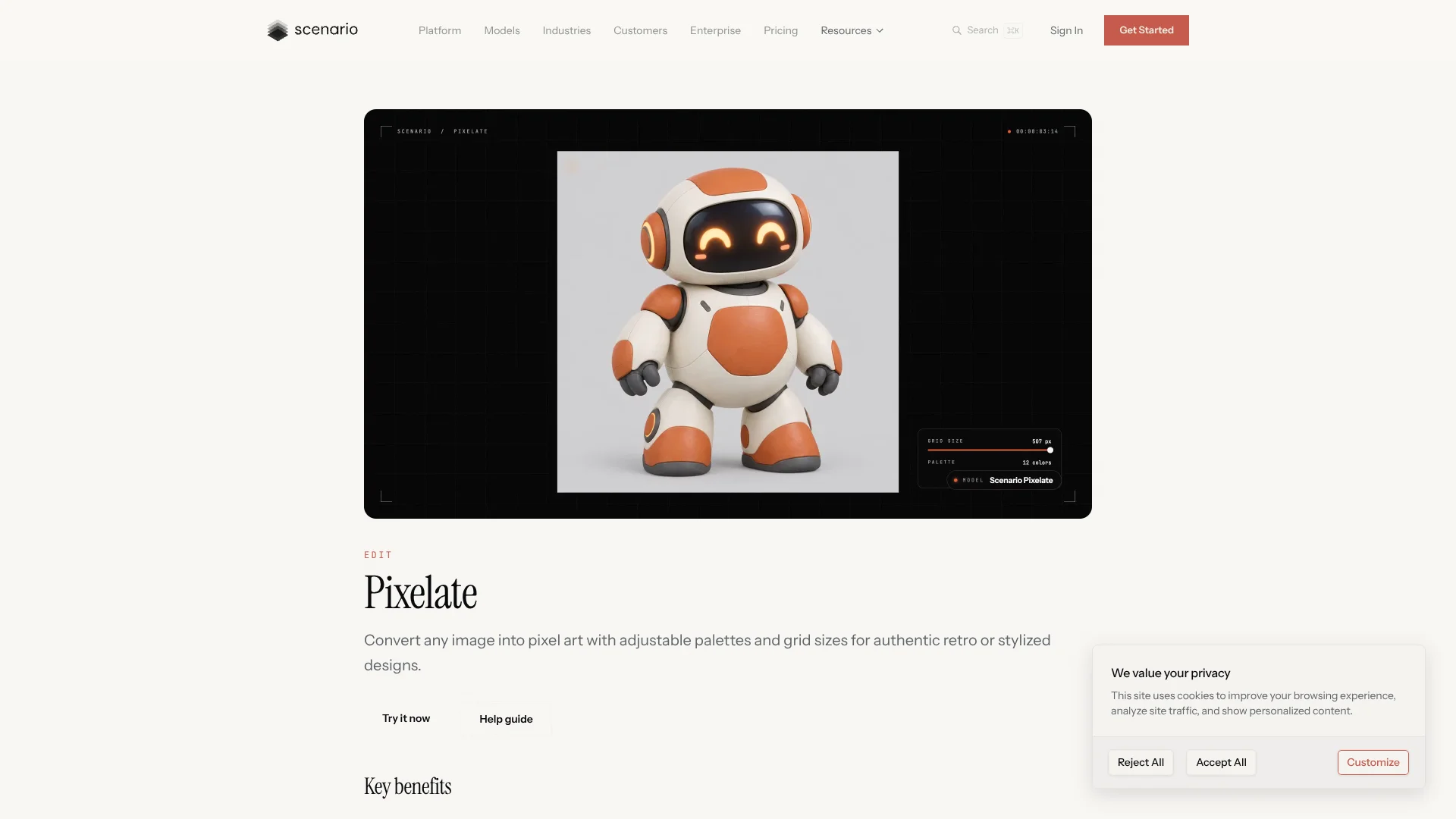
Pixelate
Turn existing images into adjustable retro pixel art for game creators.
Key Takeaways
- What it is
- Turn existing images into adjustable retro pixel art for game creators.
- Pricing
- Freemium · $15 per month · $45 per month · $75 per month
- Best for
- Adjustable pixel grid
- Custom color palette
- Palette size control
- Rating
- 4.1/5
What is Pixelate?
Scenario Pixelate turns an existing image into retro-style pixel art, with controls for how blocky the result looks and how many colors it uses. Game artists can start from a reference image, then adjust the pixel grid, palette, and noise cleanup to shape sprites, portraits, or other visual assets.
Its pixel grid and color palette are adjustable separately: set a custom palette with specific hex colors, or reduce the image to a chosen number of colors. That gives artists direct control over the retro look instead of relying on a single preset effect.
Pixelate suits game artists and other creators who want to restyle existing images rather than draw pixel art from scratch. The tool is not included in Scenario’s free plan, so you need a paid plan to try it.
Who is Using Pixelate?
Game artist
A consistent palette and grid help turn character or environment references into pixel-style assets.
Illustrator
Grid and color controls make it possible to restyle an existing illustration with a retro look.
UI artist
Pixelate can give icons and interface artwork a coordinated pixel-art treatment.
Marketing designer
A retro treatment can adapt an existing image for a poster or other promotional graphic.
Uncommon Use Cases
Apply the same settings to animation frames for a consistent look; create pixel-style portraits for social profiles.
Key Features
Rating Breakdown
Pricing Plans
Free
Free
- 50 daily credits
- No credit card required
- Pixelate is not included
Starter
$15 per month
- 1,500 monthly credits
- Single-user workspace
- Annual billing is 33% cheaper than monthly billing
Pro
$45 per month
- 5,000 monthly credits
- Priority queue and unlimited relaxed generations
- Custom model training and 500 GB storage
- Annual billing is 33% cheaper than monthly billing
Max
$75 per month
- 10,000 monthly credits
- Workspace for up to 25 users and team collaboration tools
- 1 TB storage, plus 1 TB per seat
- Annual billing is 33% cheaper than monthly billing
Enterprise
- Consumption-based pricing with volume discounts
- Custom integrations and SSO/SAML
- 10 TB storage, plus 1 TB per seat
Which Pixelate plan should you pick?
Pixelate is not available on Free, so start with Starter for individual use and consider Pro or Max if you need custom model training or a shared team workspace.
Free
Good for exploring Scenario, but it does not include Pixelate.
Starter
Good for a solo creator who needs paid access to Scenario’s image tools and models.
Pro
Good for creators who need custom model training, priority queue access, or unlimited relaxed generations.
Max
Good for a team that needs collaboration tools and a workspace for up to 25 users.
Enterprise
Good for organizations that need custom integrations, SSO/SAML, or organization-scale controls.
Pixelate Use Cases
Retro game sprites
Game asset production starts with an existing image and a selected grid and color palette.
Outcome: Pixel-style artwork suitable for game projects.
Consistent animation frames
A repeated grid size and palette keep related frames visually aligned.
Outcome: A set of frames with a more consistent pixel-art style.
Stylized portraits
A custom palette and grid give a portrait a distinct pixel-art treatment.
Outcome: A retro-style avatar or portrait.
Retro posters
A larger palette and noise cleanup can shape an image for nostalgic poster artwork.
Outcome: A pixelated image for a poster or marketing graphic.
Workflow Ideas with Pixelate
Create a game sprite
- 1Select an image from the Scenario library or upload one.
- 2Choose a pixel grid and set a custom palette or palette size.
- 3Enable Remove Noise or Remove Background if needed, then generate and save the result.
Keep a set of frames consistent
- 1Choose a grid size and palette for the visual style.
- 2Apply the same settings to each frame.
- 3Review the results and save the pixelated images to the Scenario library.
Make a pixel-style portrait
- 1Select or upload the portrait image.
- 2Set the grid and choose a palette that suits the intended look.
- 3Generate, review, and download or save the result.
How Pixelate fits into your stack
Scenario image editing
Pixelate sits in Scenario’s Images tools and can be opened from an image or from the left-side menu. The result can be downloaded or saved to the library.
Game art workflow
The grid, palette, and noise controls help adapt existing artwork into retro-style game assets.
API and batch workflows
Scenario documents Pixelate as an image-to-image API model. Scenario’s API can support automated creative workflows and batch processing.
Team workspace
Scenario’s Max plan supports workspaces for up to 25 users and team collaboration tools; Enterprise includes custom integrations.
Pros
- +Grid control: Choose how much detail survives the pixelation.
- +Palette control: Specify colors by hex code or limit the number of colors.
- +Repeatable style: Reuse saved palettes and settings across related images.
- +API option: Automate Pixelate runs as part of a creative production workflow.
Cons
- −Paid access required: Pixelate is not available on Scenario’s free plan.
- −Manual consistency: Matching a series of images means reusing the same grid and palette settings.
- −Credit-based use: Each generation consumes credits, and the cost depends on the model and output settings.
Limitations & when to consider alternatives
Known limitations
- Pixelate is excluded from Free. Scenario’s Free plan does not include pixelating in the web app, so Pixelate requires a paid plan.
- API requires a paid plan. Free organizations cannot use Scenario API keys.
- Credits do not roll over. Monthly credits expire at the end of the billing period, and each generation uses an amount that varies by model and settings.
Look elsewhere when
- You need a free plan that includes pixel-art conversion.
- You need a dedicated pixel-art drawing editor rather than an image conversion tool.
- Your workflow depends on monthly credits carrying over.
How to Use Pixelate
- 1
Open Pixelate
Find Pixelate under Images in Scenario, choose it from an image’s menu, or open the Pixelate page in the app.
- 2
Choose an image
Select an image from your Scenario library or drag and drop one from your computer.
- 3
Set the colors
Keep the automatically extracted palette, set a palette size, or create a custom palette with hex colors.
- 4
Set the grid
Pick a smaller grid for chunkier pixels or a larger one to retain more image detail.
- 5
Refine and generate
Turn on Remove Noise or Remove Background if useful, then generate and adjust the settings if needed.
- 6
Save the result
Download the pixel art or save it to your Scenario library for later use.
Who is Pixelate For?
Game creators
Pixelate can turn existing art into retro-style sprites and other game visuals.
Individual creators
A solo artist can adjust the grid and palette without building the effect by hand.
Creative teams
Scenario’s shared workspaces let teams work with project assets and repeatable visual settings.
Frequently Asked Questions
Can I use Pixelate on Scenario’s free plan?
No. Pixelating is listed among the web app tools excluded from the Free plan.
What settings can I change?
You can adjust the pixel grid, set a custom color palette or palette size, and enable Remove Noise.
Can I use Pixelate through an API?
Yes. Scenario documents Pixelate as an image-to-image model with controls for grid size, noise removal, and palette settings. API access requires a paid plan.
Can I use the results commercially?
Scenario says paid plans include a commercial license for generated assets. Free-plan outputs are for personal and evaluation use.
Do unused credits carry over?
No. Monthly credits do not roll over to the next billing period.
Community reviews
Be the first to share your experience.
Sign in to leave a review for Pixelate.
Pixelate Alternatives
Looking for alternatives to Pixelate? Here are similar tools in the same category: