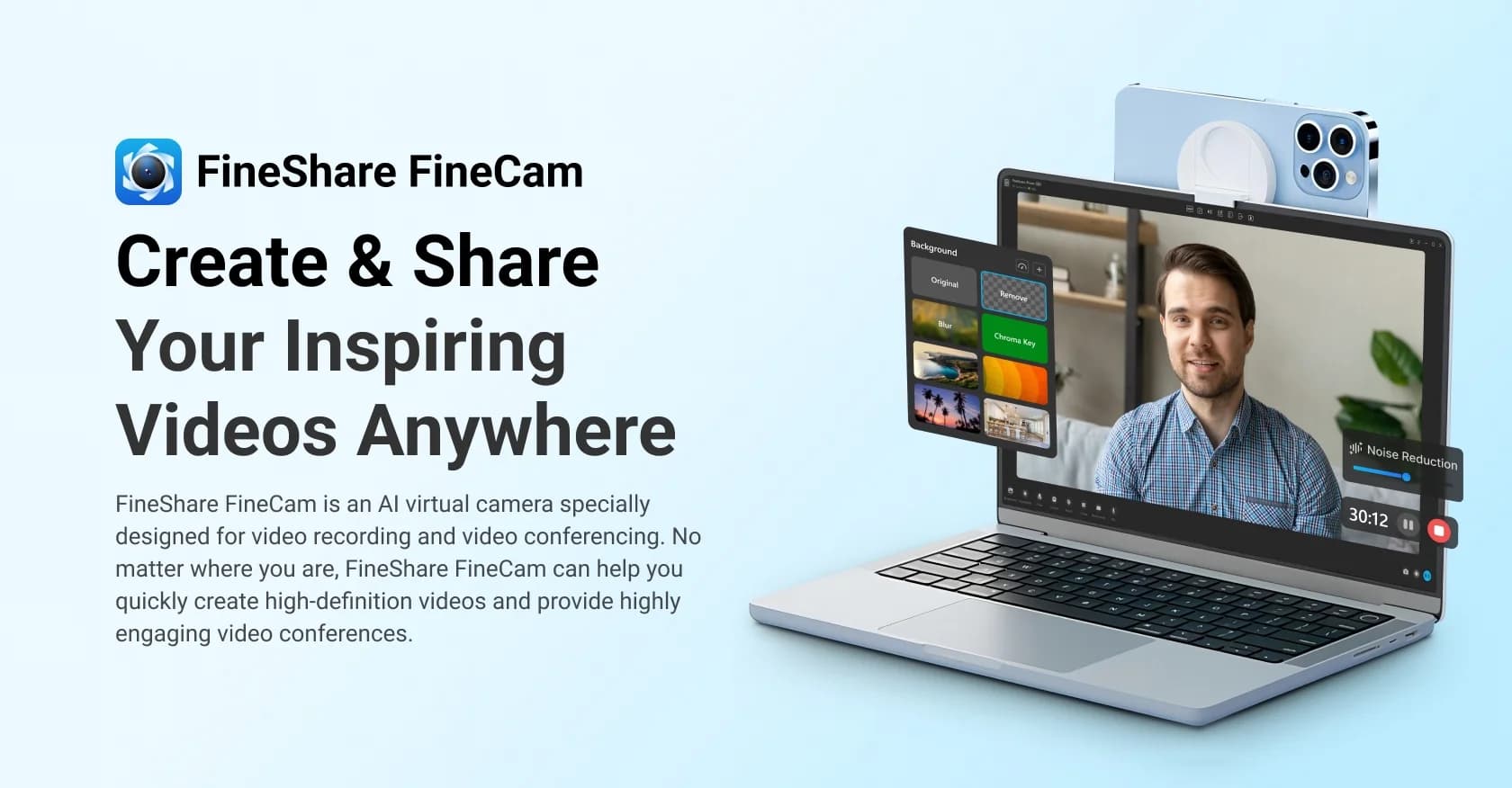
FineShare FineCam
Transform your video calls and recordings with FineShare FineCam's advanced capabilities
Watch FineShare FineCam in Action
Key Takeaways
- What it is
- Transform your video calls and recordings with FineShare FineCam's advanced capabilities
- Best for
- FineVoiceAI Voice Studio
- FineCamAI Virtual Camera
- SingifyAI Song Cover
- Rating
- 4.6/5
What is FineShare FineCam?
FineShare is a groundbreaking suite of AI-powered tools designed to enhance audio and video production, offering solutions for voiceovers, virtual camera functionalities, song covers, voice changing, and voice cloning. Tailored for content creators, educators, professionals, and anyone in need of sophisticated multimedia tools, FineShare simplifies the process of creating high-quality digital content.
FineShare distinguishes itself with its comprehensive suite of tools that cater to a wide array of audio and video production needs. Its innovative AI voice changer and cloning technology are standout features that enable users to create unique and personalized content.
FineShare excels in providing innovative and user-friendly audio and video solutions, making it an indispensable tool for a diverse range of users. Its exceptional AI voice and video capabilities, coupled with ease of use and a rich resource library, offer an unmatched advantage for creating professional-grade multimedia content. Whether for entertainment, education, or professional communication, FineShare stands out as a leading choice in the realm of AI-powered creative tools.
Who is Using FineShare FineCam?
Content Creators
Leveraging the suite to produce engaging audio and video content for various platforms.
Educational Professionals
Enhancing online teaching with high-quality course content and interactive learning materials.
Podcasters and Voiceover Artists
Utilizing voice studio features for creating professional-grade voiceovers and podcasts.
Gamers and Streamers
Employing voice changing tools to entertain and engage audiences during live streams.
Uncommon Use Cases
Utilized by authors for creating audiobook narrations; Adopted by customer service centers for generating personalized automated responses.
Key Features
Rating Breakdown
Pricing Plans
Free Versions
- Some FineShare products are available as free downloads with basic features
Premium Plans
- Upgraded plans with advanced features and capabilities are available for purchase
Which FineShare FineCam plan should you pick?
Start with the Free version to test camera, background, recording, and virtual-camera features; upgrade when you need watermark removal, longer exports, higher resolution, or more scenes.
Free
Good for users who need basic camera controls, filters, background removal, recording, virtual camera, and content sharing.
1 Month Plan
Good for users who need Pro features temporarily, with 10 video scenes and support for 720P, 1080P, and one computer plus three mobile devices.
1 Year Plan
Good for regular users who need 50 video scenes, up to 4K quality, two computers, and 20 mobile devices.
Lifetime Plan
Good for long-term users who need unlimited scenes, up to 4K quality, two computers, and 50 mobile devices.
FineShare FineCam Use Cases
Online teaching
Combine webcam video with slides, webpages, videos, and other educational materials.
Outcome: More interactive online classes.
Online meetings
Use a customized virtual camera, shared content, themes, and presentation layouts in meeting platforms.
Outcome: More professional remote meetings.
Product demonstrations
Record or stream product presentations while using overlays to emphasize features and benefits.
Outcome: Dynamic product demos.
Telemedicine
Conduct virtual consultations while presenting medical records and test results.
Outcome: Remote patient consultations.
Content creation and livestreaming
Capture multiple cameras, switch scenes, apply backgrounds and effects, and record or stream.
Outcome: Higher-quality video content.
Workflow Ideas with FineShare FineCam
Create a presentation video
- 1Launch FineCam and choose a camera
- 2Select slides, webpages, videos, images, or an application window
- 3Click Record or Virtual Camera to create and share the presentation
Use a phone as a webcam
- 1Install FineCam Webcam on the phone
- 2Install FineShare FineCam on Windows or macOS
- 3Connect the phone and computer through Wi-Fi or USB
Record segmented video content
- 1Capture multiple video segments with FineCam
- 2Resume recording when needed
- 3Combine and remix the clips into a complete video
How FineShare FineCam fits into your stack
Mobile Device Integration
Turns smartphones into HD webcams for versatile video capturing.
Audio and Video File Conversion
Offers transcription and text-to-speech services for a variety of formats.
Multimedia Content Creation
Supports the inclusion of multimedia elements for enriched content sharing.
Multi-Camera Support
Enables connection of multiple cameras for dynamic video creation.
Pros
- +Ease of Use: Offers a user-friendly interface that requires no learning curve, making it accessible to all users.
- +Leading AI Technology: Employs advanced AI algorithms to produce professional-grade results instantly.
- +Resource-Rich: Comes with a vast library of images, sound effects, and templates for creative and impactful content creation.
- +Mobile Compatibility: Utilizes mobile devices to their fullest potential, turning them into powerful tools for video and audio enhancement.
- +Diverse Applications: Suitable for various settings, including online education, professional video conferencing, and creative multimedia projects.
Cons
- −Platform Dependency: Some features may rely on specific platforms or devices, which could limit accessibility for some users.
- −Internet Requirement: As an AI-based tool, it may require a stable internet connection to function optimally, which could be a constraint in areas with poor connectivity.
- −Learning Resources: While user-friendly, new users may still require tutorials or guides to unlock the full potential of advanced features.
Limitations & when to consider alternatives
Known limitations
- Free videos include a watermark. The free version adds a watermark; removing it requires FineCam Pro.
- Free exports are limited to five minutes. The pricing comparison lists a five-minute export time limit for the Free version.
- Free video quality is limited. The Free version supports 720P, while Pro plans add 1080P and 4K.
- Free background functionality is limited. The Free version supports background removal only; Pro adds background removal, blur, replacement, and green-screen features.
- High-quality virtual backgrounds may increase latency. FineShare says virtual-background processing may require faster CPU or GPU hardware, and higher quality can produce higher latency.
Look elsewhere when
- You need a documented developer API.
- You need shared workspaces with roles and invitations.
- You need browser-based extension functionality.
- You need image analysis or document understanding.
How to Use FineShare FineCam
- 1
Explore the official FineShare website and YouTube channel for tutorials ranging from setup to advanced feature utilization.
Who is FineShare FineCam For?
Online teachers
Use slides, interactive webpages, multiple camera angles, effects, and video to make online classes more engaging.
Remote teams
Use screen sharing and presentation features for online meetings, discussions, and brainstorming.
Salespeople
Create dynamic product demonstrations with overlays that highlight product features and benefits.
Doctors
Conduct virtual consultations while displaying medical records, test results, and treatment information.
Content creators and livestreamers
Record and stream with multiple cameras, virtual backgrounds, filters, overlays, and virtual-camera output.
Frequently Asked Questions
Is FineCam free to use?
Yes. The free version includes camera controls, filters and effects, background removal, phone-as-webcam support, snapshots, recording, virtual camera, and content sharing. Free output includes a watermark and is limited to five minutes.
What operating systems does FineCam support?
FineCam supports Windows 8.1, Windows 10, Windows 11, macOS 11 and above, and iOS 13 or higher.
How do I enable the virtual camera?
Click the Virtual Camera icon, then select FineCam as the camera source in the video settings of your meeting or chat application.
Can FineCam use a phone as a webcam?
Yes. FineCam connects iPhone, iPad, and Android cameras to Windows or macOS through Wi-Fi or USB.
How can I remove FineCam's watermark?
Upgrade to FineCam Pro to remove the watermark from videos.
Why might FineCam have low video resolution?
Video-chat applications or unstable internet connections may scale resolution down. FineCam also lowers resolution when hardware cannot process virtual backgrounds smoothly.
Community reviews
2 reviews from people who use FineShare FineCam.
Sign in to leave a review for FineShare FineCam.
zee by
Thibault BM
FineShare FineCam Alternatives
Looking for alternatives to FineShare FineCam? Here are similar tools in the same category: