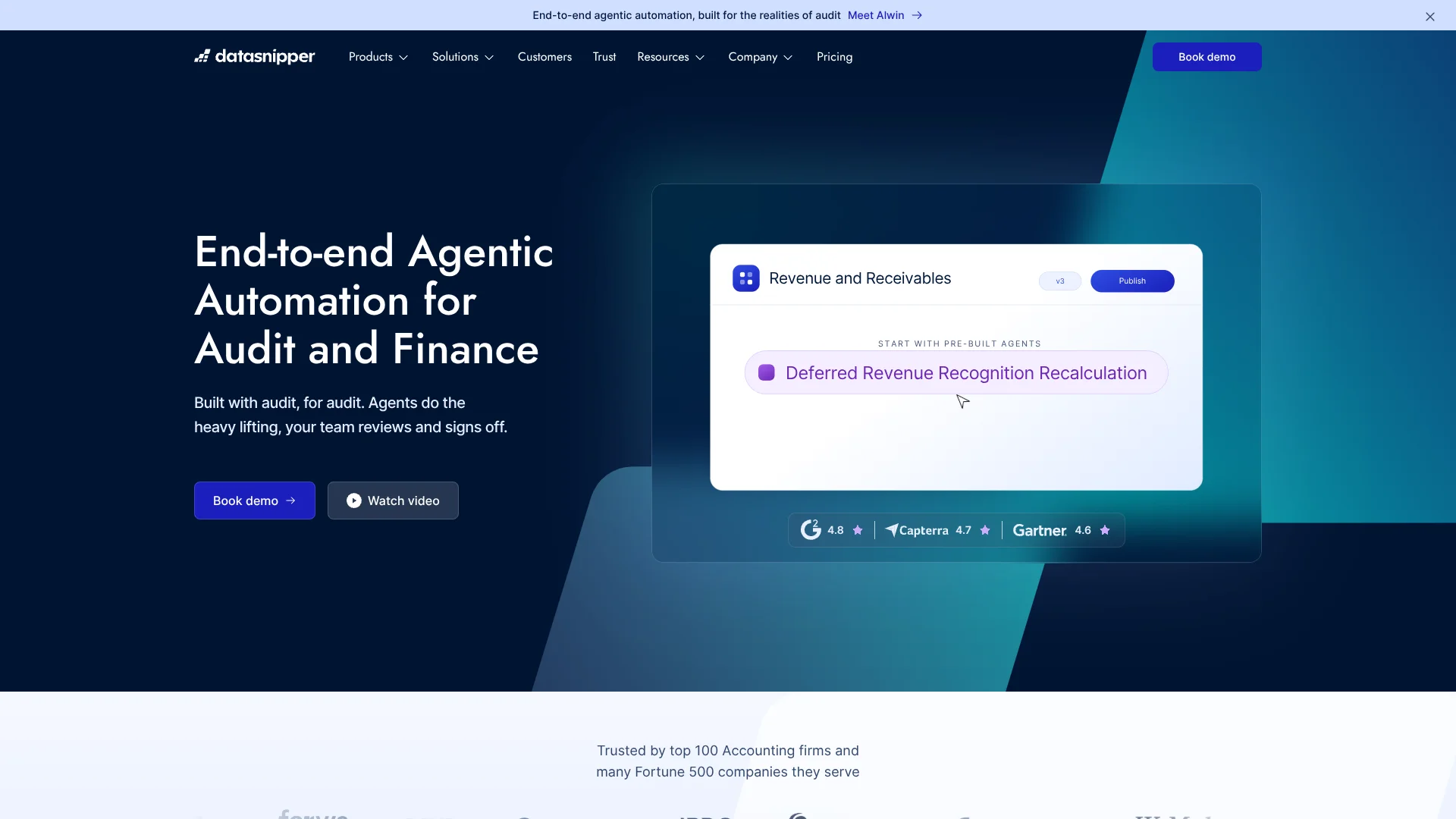
DataSnipper
Excel-based audit testing that links financial figures directly to source documents.
Key Takeaways
- What it is
- Excel-based audit testing that links financial figures directly to source documents.
- Best for
- Excel Agents
- Agent Builder
- Form Extraction
- Rating
- 4.3/5
What is DataSnipper?
DataSnipper links figures in audit and finance workpapers to the source documents that support them, so reviewers can check evidence without manually searching through files. Its Excel add-in helps audit firms and finance teams extract information, match documents, and test procedures in the spreadsheets they already use. AI Agents can also carry out multi-step tests and return work for human review.
A DataSnipper Agent can write results into an Excel workpaper with source-linked Snips, making it possible to inspect both the agent’s output and the evidence behind it in the same file.
External and internal auditors are the clearest fit, with tools also for tax, financial control, government audit, and advisory work. It is built around audit procedures in Excel, not general-purpose AI work, so teams seeking a standalone chatbot or a broad automation tool may need something else.
Who is Using DataSnipper?
External Auditors
Tests of detail and control become easier to document when extracted values link to their source evidence.
Internal Auditors
Control testing workpapers can bring supporting documents and reviewable results together.
Tax Accountants
Tax form extraction helps move document fields into spreadsheets for review.
Financial Controllers
Document matching and reconciliation support recurring finance procedures.
Audit Managers
Shared agents can help teams apply the same procedure across multiple engagements.
Uncommon Use Cases
Rechecking loan amortization against bank statements; comparing financial statement versions.
Key Features
Rating Breakdown
Pricing Plans
Start
- DataSnipper for Excel
- Document Matching, Form Extraction, Version Comparison, and Snips
- Single Sign On (SSO)
Accelerate
- Everything in Start
- Excel Agents, Disclosure Agents, DocuMine, and AI Extractions
- Agent Builder, Prebuilt Agents, and integrations
Elevate
- Everything in Accelerate
- Alwin by DataSnipper
- Planning Mode, Audit Workbench, Review Workflow, and Client Spaces
Which DataSnipper plan should you pick?
Start with Start for document matching and extraction; choose Accelerate for AI features and integrations, or Elevate for cloud-based end-to-end procedures and review workflows.
Start
For audit and finance teams that need core Excel features such as document matching, Form Extraction, Version Comparison, and SSO.
Accelerate
For teams that need Excel Agents, Agent Builder, DocuMine, AI Extractions, and integrations.
Elevate
For organizations that want Alwin, Planning Mode, Audit Workbench, Review Workflow, and Client Spaces.
DataSnipper Use Cases
Revenue Testing
Revenue work can run from reading source documents through reconciliation, with results placed in the Excel workpaper for review.
Outcome: Traceable output with source Snips and Excel formulas.
Invoice Data Extraction
Invoice fields can be extracted into a table instead of keyed into Excel by hand.
Outcome: Extracted data displayed in the Excel workbook.
Internal Controls Testing
Supporting evidence can be evaluated as part of control testing and documented in Excel.
Outcome: A reviewable workpaper with supporting evidence.
Loan Amortization Testing
A custom agent can extract loan terms, recalculate amortization, and compare interest expense with the trial balance.
Outcome: A repeatable procedure with traceable results.
Financial Statement Review
The Financial Statement Suite checks mathematical accuracy and consistency within and between financial statement versions.
Outcome: Documented financial statement procedures.
Workflow Ideas with DataSnipper
Run a revenue test in Excel
- 1Open the revenue testing workpaper and import supporting documents.
- 2Start an Excel Agent and describe the procedure.
- 3Review the agent's plan, then inspect its output and source Snips before sign-off.
Bring SharePoint evidence into a workpaper
- 1Connect SharePoint or OneDrive through the DataSnipper ribbon.
- 2Search for and select the supporting documents to import.
- 3Run the relevant extraction or testing step, then review the results in Excel.
Standardize a recurring procedure
- 1Describe the procedure's goals, decision rules, and steps in Agent Builder.
- 2Test the agent against the supporting documents and adjust its instructions.
- 3Publish it for the organization so eligible colleagues can run it in Excel.
How DataSnipper fits into your stack
Excel workpapers
The DataSnipper add-in brings document testing and Excel Agents into audit and finance workbooks. Results can include links back to source evidence.
Document storage
SharePoint and OneDrive integrations let teams search for and import selected files from within Excel. Imported files do not update automatically when the original changes.
Browser-based Agent Builder
Agent Builder runs through DataSnipper's web platform, where eligible users can create, publish, and share reusable agents for use in Excel.
WebSnip Extension
The pricing page lists a WebSnip Extension for capturing source material from the web as part of document-based work.
Pros
- +Source-linked workpapers: Reviewers can follow an extracted result back to its supporting document.
- +Excel-based testing: Agents perform procedures within the workpaper instead of returning a separate report.
- +Reusable procedures: Agent Builder lets teams share custom workflows across engagements.
- +Local processing for core features: DataSnipper says its core Snips and document matching run locally.
Cons
- −Audit-focused scope: Its features center on audit and finance procedures rather than general AI tasks.
- −Sales-led purchase: The pricing page directs buyers to book a demo or contact sales instead of showing prices.
Limitations & when to consider alternatives
Known limitations
- Extraction size limits. An AI Extractions task can include up to 75 documents, with a maximum of 300 pages and 200 MB per document.
- Imported files do not auto-update. When a source file changes in SharePoint or OneDrive, the copy embedded in the workbook stays unchanged until it is re-imported.
- AI features require internet access. Excel Agents require internet access and an Accelerate or Elevate package.
- Integration setup requirements. SharePoint and OneDrive integrations require DataSnipper v26.2 or later, User Management, an accepted Data Processing Agreement, and a Microsoft 365 administrator account.
Look elsewhere when
- You need a general-purpose AI tool for work outside audit and finance procedures.
- You need a publicly priced self-service plan before speaking with sales.
- Your team needs a native mobile app.
How to Use DataSnipper
- 1
Prepare an Excel workpaper
Open the audit or finance workbook where you want the testing and documentation to appear.
- 2
Add source documents
Import supporting files into the DataSnipper Document Viewer or connect SharePoint or OneDrive to select files.
- 3
Choose a procedure
Select a relevant prebuilt agent, describe a task to Excel Agents, or use a matching extraction feature.
- 4
Review the agent's plan
For an agent-run procedure, check the proposed steps before allowing it to update the workbook.
- 5
Check evidence and results
Inspect the output, formulas, and source Snips, then apply professional judgment before sign-off.
Who is DataSnipper For?
External Audit
Audit teams can automate tests of detail, tests of control, and financial statement procedures in Excel.
Internal Audit
Internal auditors can evaluate controls and organize evidence for testing.
Tax
Tax teams can extract information from tax forms and review supporting documents.
Financial Control
Financial controllers can reconcile documents and automate invoice processing.
Government Audit
Government auditors can organize grant evidence and test controls.
Frequently Asked Questions
Does DataSnipper have a free plan?
The official pricing page lists Start, Accelerate, and Elevate but does not show a free plan.
How much does DataSnipper cost?
The official pricing page does not publish plan prices. Start and Accelerate invite buyers to book a demo, while Elevate directs them to contact sales.
Which plans include AI Agents?
The pricing page lists Excel Agents, Disclosure Agents, Agent Builder, and Prebuilt Agents under Accelerate. Elevate includes the Accelerate features.
Can DataSnipper connect to SharePoint or OneDrive?
Yes. Teams can browse, search, and import selected files from either service in Excel, subject to setup requirements.
Does DataSnipper train AI on customer data?
DataSnipper states that it does not train generative AI on customer data.
Community reviews
Be the first to share your experience.
Sign in to leave a review for DataSnipper.
DataSnipper Alternatives
Looking for alternatives to DataSnipper? Here are similar tools in the same category: